
Create new Office document (document, spreadsheet, and presentation)
With the Office Suite in your Nextcloud, you create and edit documents, spreadsheets and presentations directly in your browser. The Office Suite works with Euro-Office: Word, Excel and PowerPoint files stay exactly as they are. You need an Office Suite license for this, see Ordering an Office Suite license and assigning it to a Nextcloud user.
Step 1: open Files
Log in to your Nextcloud and click the Files folder icon at the top. Go to the folder where you want to create the new document.
Step 2: click New
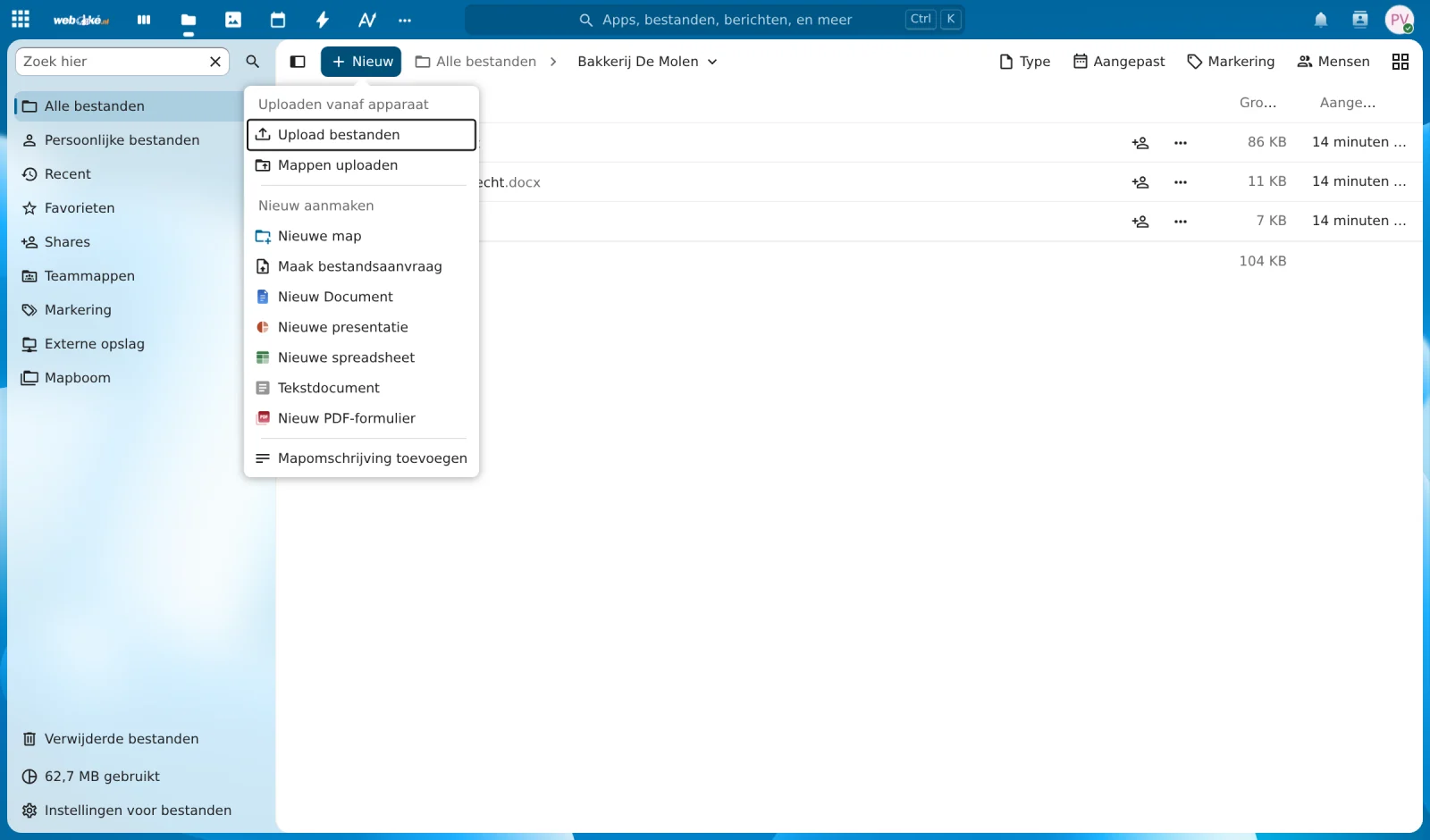
Click + New. Under New choose what you want to create: New Document (a text document, like in Word), New Spreadsheet (like in Excel), New Presentation (like in PowerPoint), or New PDF Form.
Step 3: give it a name
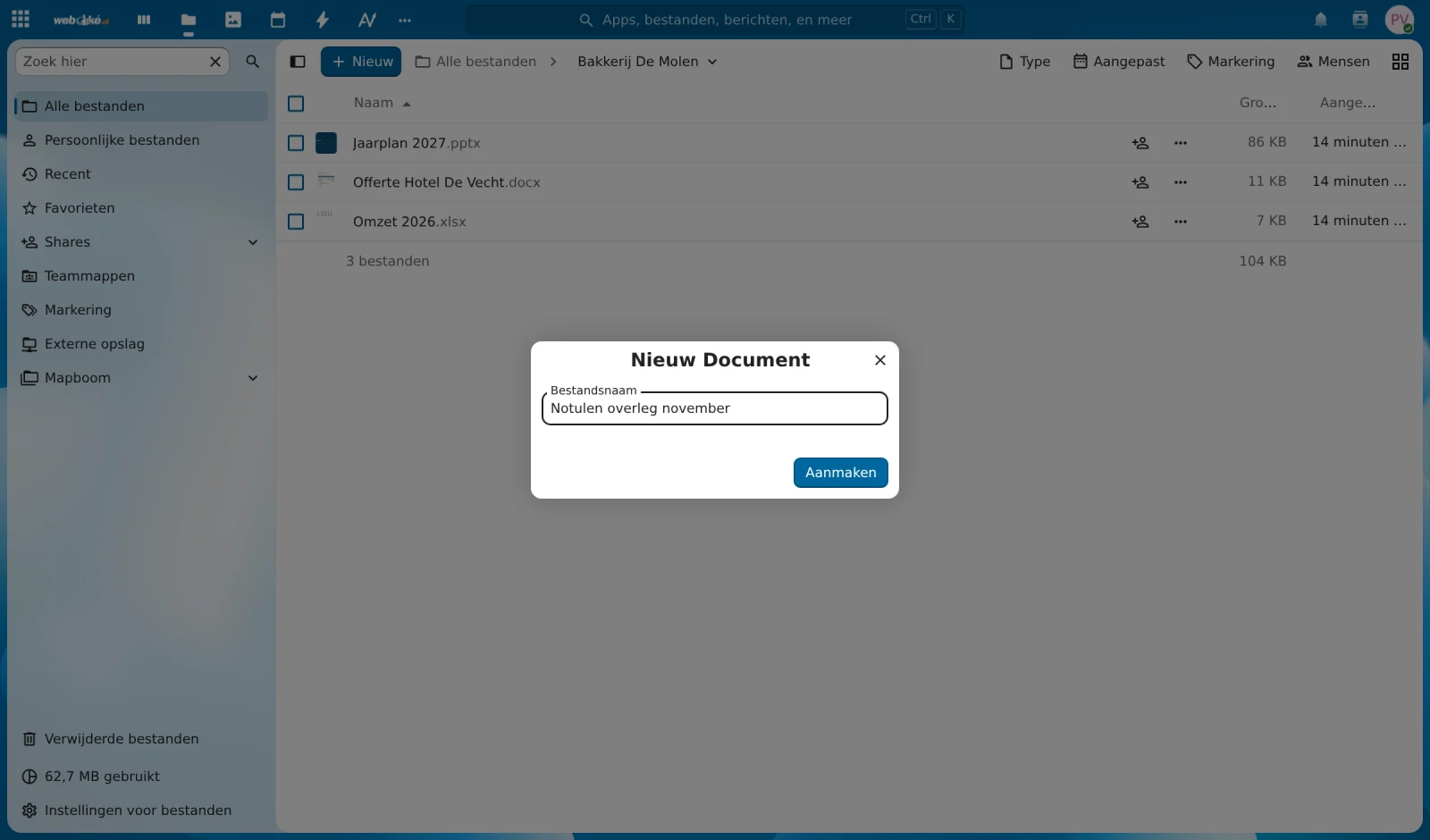
Type a name for the file and click Create. The extension (.docx, .xlsx or .pptx) is added automatically.
Step 4: get started
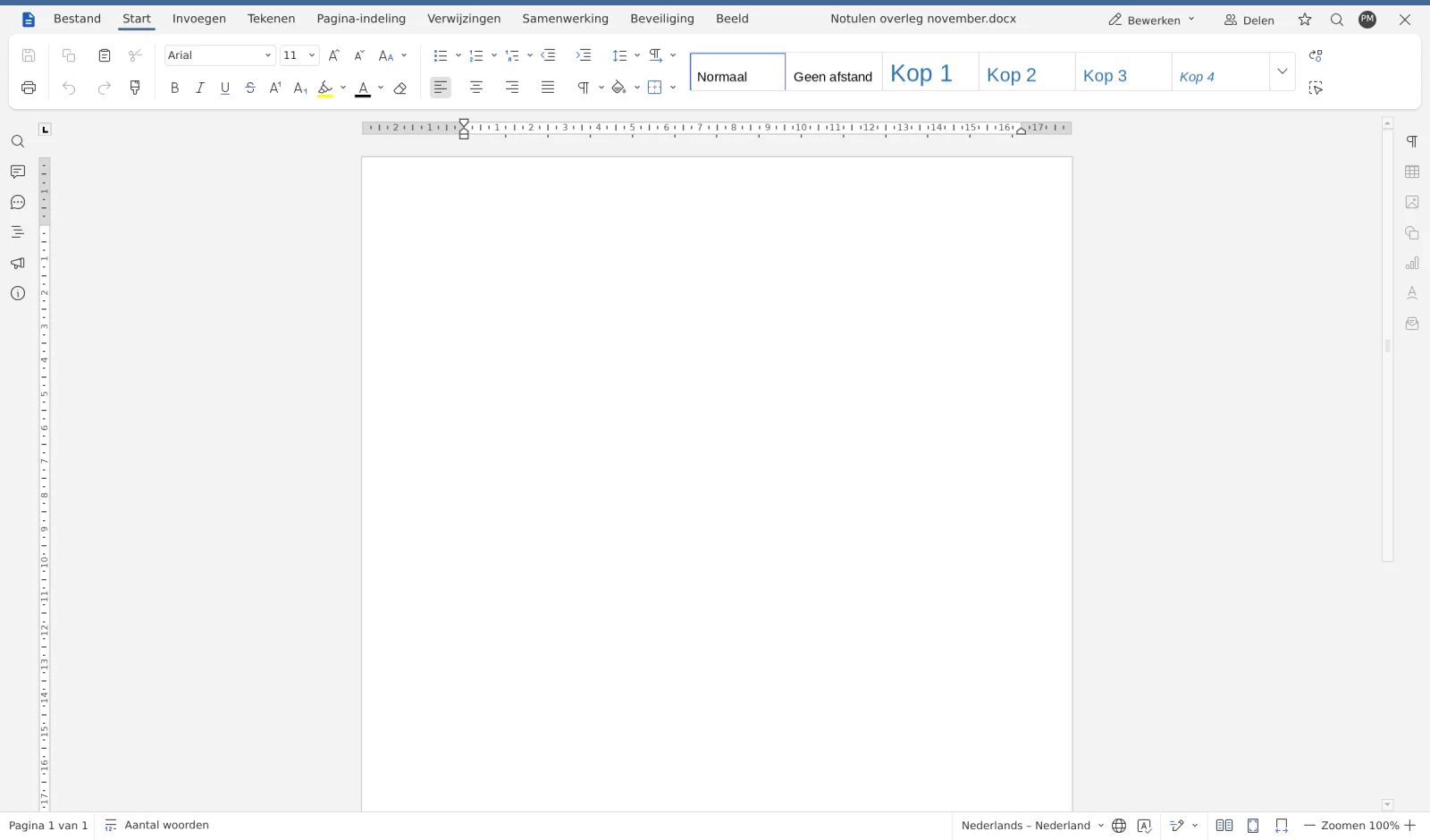
The document opens immediately in Euro-Office and you can start right away. Changes are automatically saved in your Nextcloud. When you're done, click the cross at the top right to go back to your files.
Which editor does your Nextcloud use?
At WebOké, Euro-Office is the only online editor in Nextcloud. Euro-Office is built on ONLYOFFICE. You cannot use a separate ONLYOFFICE or the old Nextcloud Office (Collabora) alongside it: we don't maintain two office suites side by side. If your Nextcloud was still using Collabora, you'll need to switch to Euro-Office yourself. You can read how to do that in Switching to Euro-Office.
Notification with WOPI or a document that keeps loading?
A notification with WOPI belongs to the old Nextcloud Office (Collabora). If you get such a notification or a document won't open, check the following:
- Do you have an Office Suite license? Without a license, a document won't open in Euro-Office. Ask your Nextcloud administrator to assign one to you.
- Has the switch to Euro-Office been made? On the package page in My WebOké, you can see on the Nextcloud 35 with Euro-Office card whether the update is complete. During the update, your Nextcloud will be unavailable for 5 to 15 minutes.
- Reload the page or try a private window. If it works there, clear your browser's cache.
After the switch, we turn off the old Nextcloud Office. If you still see a notification with WOPI afterwards, please open a ticket.
If that doesn't help, check A document won't open or keeps loading and Euro-Office notifications and what they mean. If you can't find a solution, open a ticket with the notification you see.